Linking Features and Chains
One of the coolest ways to manage features in PageBuilder is by linking features across pages. This allows editors to curate key parts of their workflow on separate pages, reducing the amount of people editing a single page, and making it very easy to prevent merge conflicts.
This is most clearly illustrated by looking at the homepage of the Washington Post:

When you scroll midway down the page, you will see six opinion "cards". These cards are actually six flex features inside of a chain curated by an editor.
While these six features could be curated manually on the homepage, this would mean one extra person is working on the page. Each additional editor on the page introduces the probability of accidentally overwriting someone else's work, or having their work overwritten. Luckily, there is a better way!
Introducing... Fragment pages
There's nothing special about Fragment pages -- they are just a PageBuilder page, except they often have a weird-looking URL, such as zzz_opinion_fragments_zzz, and they often seem to have a simplified layout, with fewer features than a typical site page. (See FAQ #6 if you're curious why)
This is what the opinions Fragment page looks like:
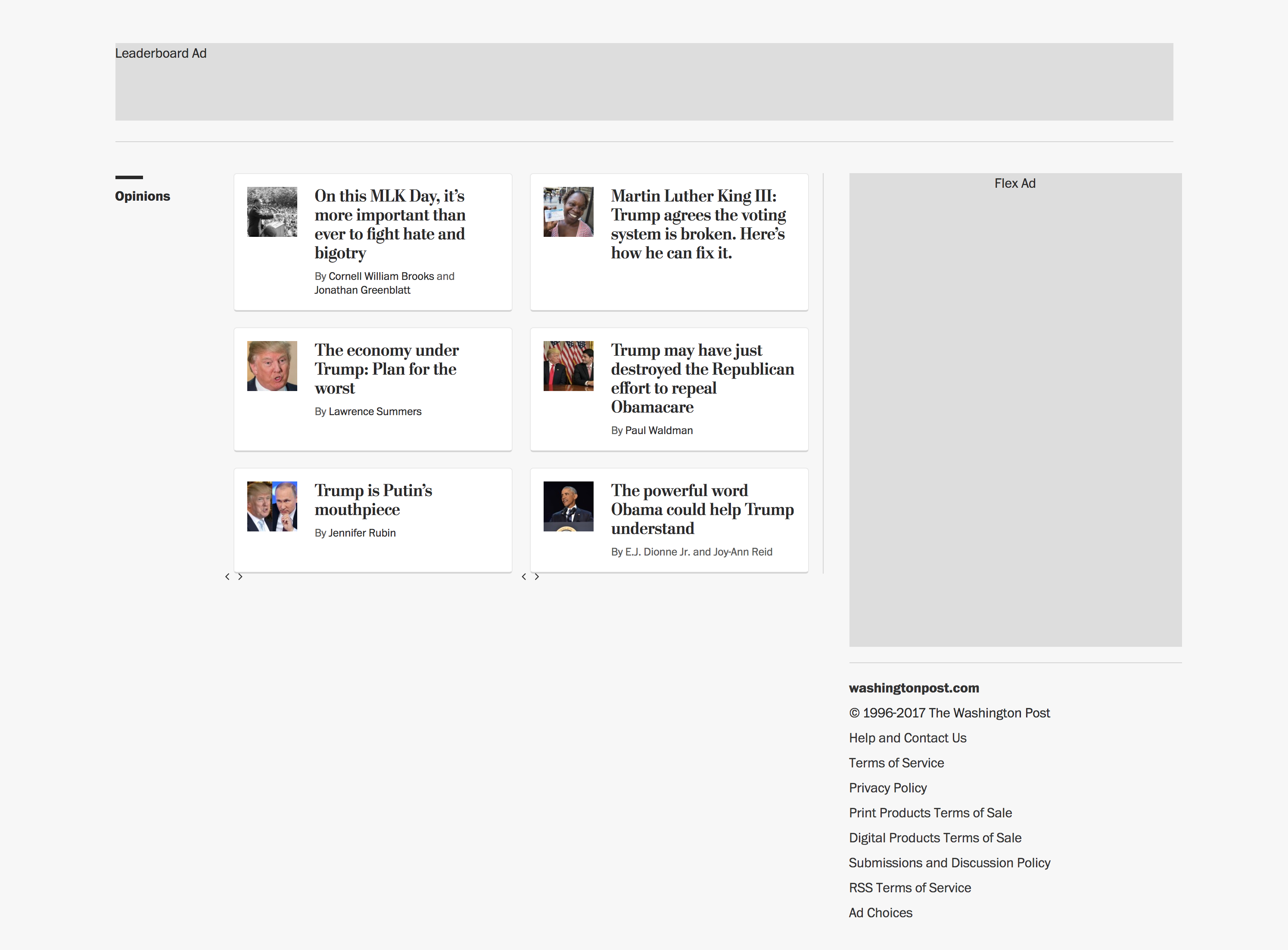
These features on the Fragment page are curated by an editor. When an editor makes changes to them, their "child" features -- features that are linked to them -- are automatically updated.
You can also link a chain, which is really handy. In the case of these six opinion flex features, the editor has linked the chain containing them, rather than each individual flex feature.
Main idea: The features and chains on fragment pages are the parent features or chains that an editor curates. Other PageBuilder features/chains on other pages are linked back to these.
How to see that a feature or chain has been linked:
Linked chains or features are given a small font-awesome icon next to the feature or chain to indicate they are linked.
To get to the fragment page, you can click on the small arrow.

Frequently asked questions:
1. Why would I use this?
- It helps editors curate specific parts on the page, and reduces the chance of stepping on each other's toes. Allows a natural breakup of the workflow.
2. How do I link a feature?
- Create your fragment page. Give it a weird URL like
zzz_[My Feature Name]_zzz - Put the feature or chain you want to link to, and configure it as you'd like. This is your Parent Feature.
- Give the feature a name. This is required. You can do this in the Content Config tab, or the Details tab.
- Publish the fragment page and make sure it's live.
- Create another page. This is the page your child feature -- the feature linked to the feature on your fragment page -- will be on.
- Add an instance of your feature on the page. For example, if you want to link to a flex feature, put a flex feature on the page.
- Select the feature if it isn't open, and select the "Linking" tab.
- From the dropdown, choose the parent page.
- If your parent page does not appear in the dropdown, make sure it is published.
- Choose the named feature from the dropdown.
- Generally, you will want to select "Content and Custom Fields" before hitting "Pull from Parent". -Voilà! Your linked feature should now be on the page.
3. When are the child features updated?
- Child features are updated any time the parent page (usually the fragment page) is published. When you publish a parent page, a popup will notify you what child features will be updated on publish.
4. Can I link features between pages that aren't fragment pages?
- Yes! A fragment page is just a standard PageBuilder page with less stuff on it.
5. Why do the fragment pages have extra stuff on it? Couldn't I just link directly to my feature, and have that feature be alone on the page?
- You could have a fragment page with just your linked feature on it, but it is often good to replicate the layout of the page the linked feature will be on. This can help you preview how the feature will actually look on the child page.
6. Why do the URLs look so weird?
- They technically don't have to be, but since Fragment pages are accessible to the public, it is a good idea to give them odd names so people don't wind up on them. Fragment pages must be published pages in order to link to them. By giving them unusual names, we reduce the likelihood that anyone would ever accidentally stumble onto these pages.
7. Is linking a chain across pages any different?
- Nope. It's pretty much the exact same process, except you have to put a feature on the page and chain it before you can link to a chain on a parent page.